
If your Bird Buddy camera module is showing a light you don't recognize, here's the quick decoder: solid green means fully charged, blinking blue means ready to pair, blinking purple means a firmware update is running, blinking orange means it's currently charging, and three rapid red blinks mean the battery is critically low. Most confusing light behavior comes down to one of four things: a power issue, a Wi-Fi band mismatch, a Bluetooth permission problem, or a firmware update catching you off guard. The sections below walk through every documented color and pattern, then give you a step-by-step fix for when something looks wrong.
Bird Buddy Lights Meaning: Colors, Status Signals, Fixes

Marcus Holloway
8 Jun 2026
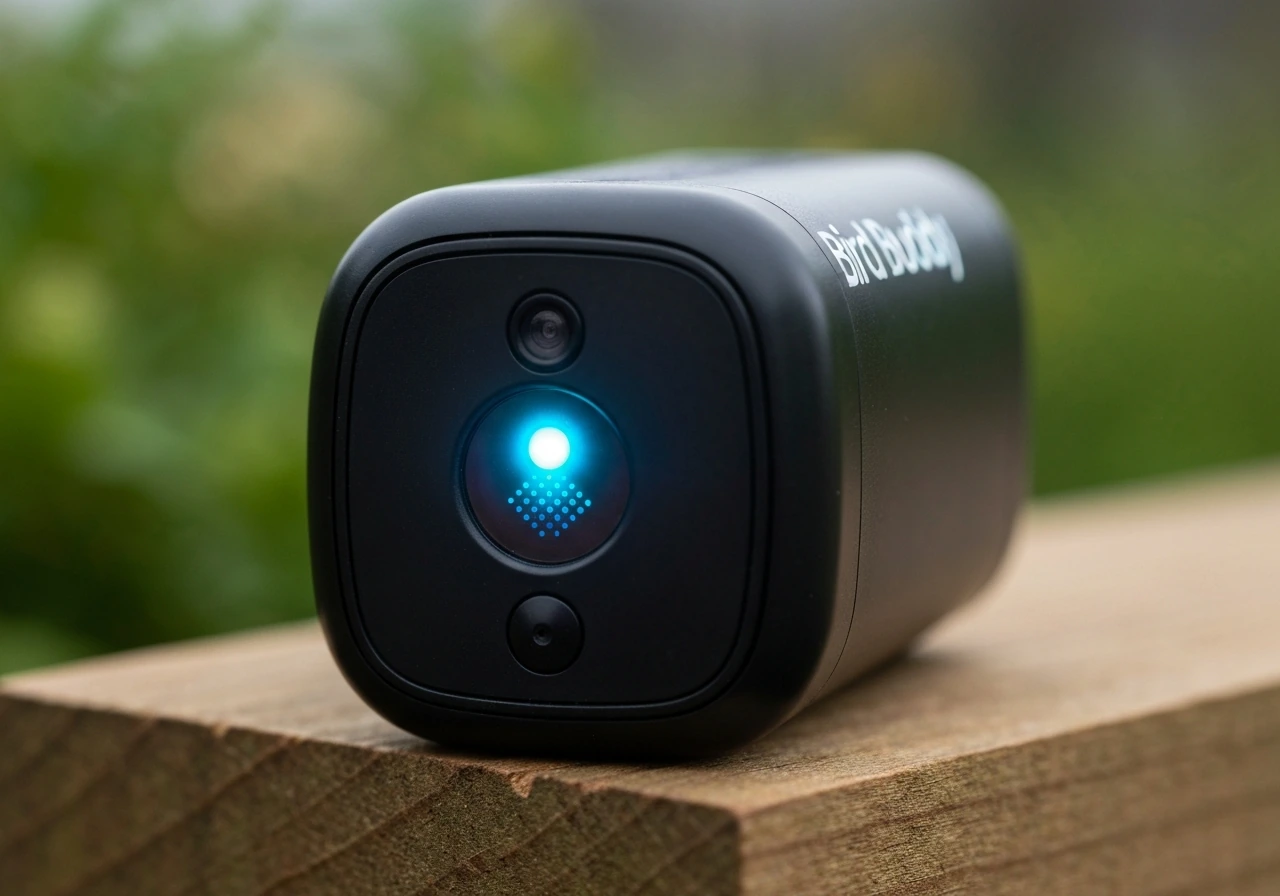
What Bird Buddy lights usually indicate at a glance
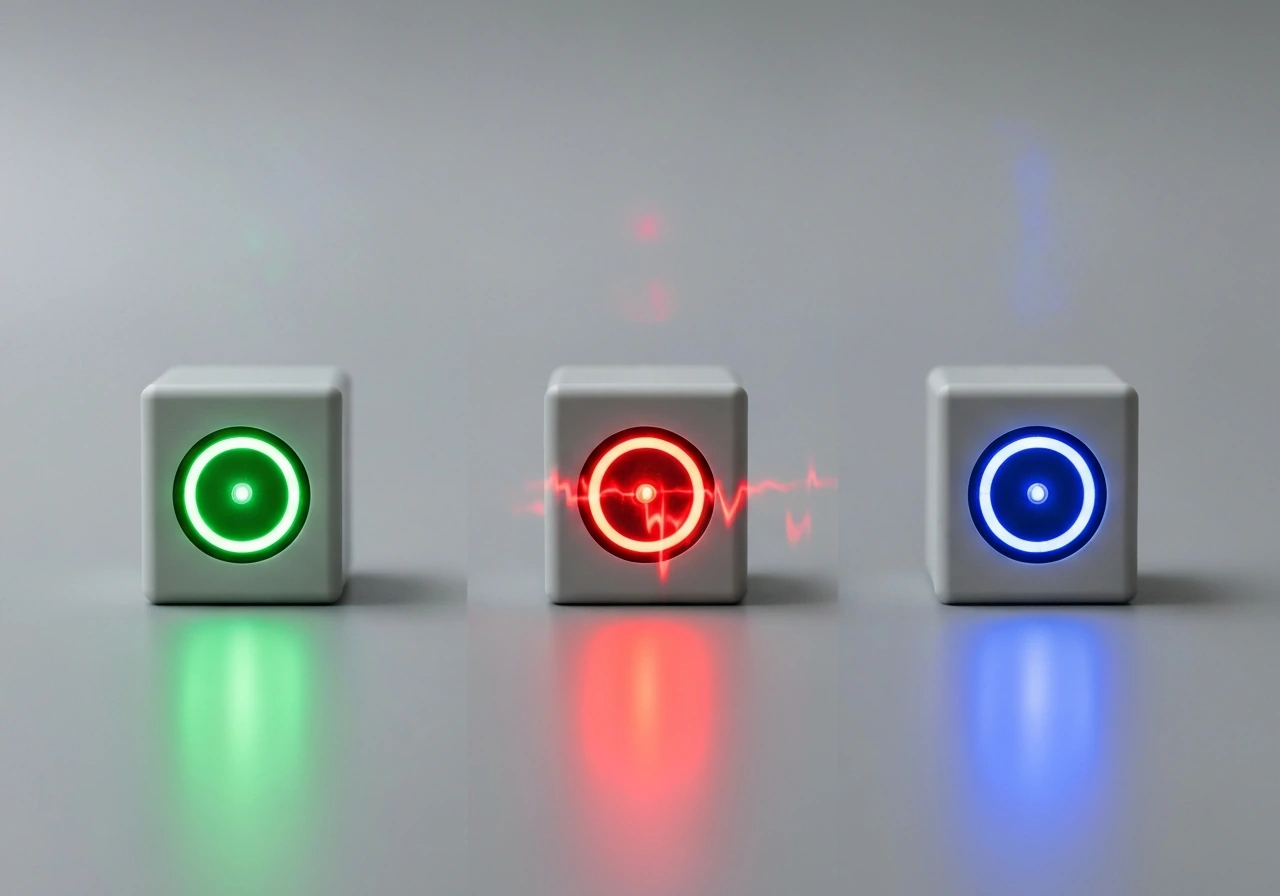
Bird Buddy uses its LED indicator to communicate exactly where the device is in its lifecycle at any given moment: charging, paired, connecting, updating, or erroring out. The light is genuinely informative once you know the language. Think of it like a status bar you can see from across the yard.
| Light color & pattern | What it means |
|---|---|
| Solid green | Battery fully charged |
| 3 rapid green blinks | Successfully connected to Wi-Fi |
| 1 green blink (then 1 white blink) | Device is turned on |
| 1 red blink (rapid) | Device turned off |
| 3 rapid red blinks | Battery critically low, device will shut down |
| 1 red blink every 8 seconds | Charging in progress (original module) |
| Blinking blue (steady) | Ready for Bluetooth pairing |
| Solid blue for 2 seconds | Bluetooth pairing successful |
| 3 rapid orange blinks | Wi-Fi connection failed |
| Blinking orange (steady) | Charging in progress (Bird Buddy 2) |
| Blinking white (steady) | Wi-Fi connection pending |
| Blinking purple (steady) | Firmware update in progress |
| Blinking yellow (steady) | Device pairing to your account |
| Solid red for 2 seconds (after button hold) | Factory reset initiated |
One practical note: in bright outdoor light, these LEDs can be very hard to see. If you're trying to diagnose a light during the day, cup your hands around the button area or bring the device somewhere darker. Bird Buddy's own support team mentions this specifically, and it's genuinely easy to miss a faint blue blink in full sunlight.
How to read the light colors and blinking patterns
Green lights: power and connectivity good news
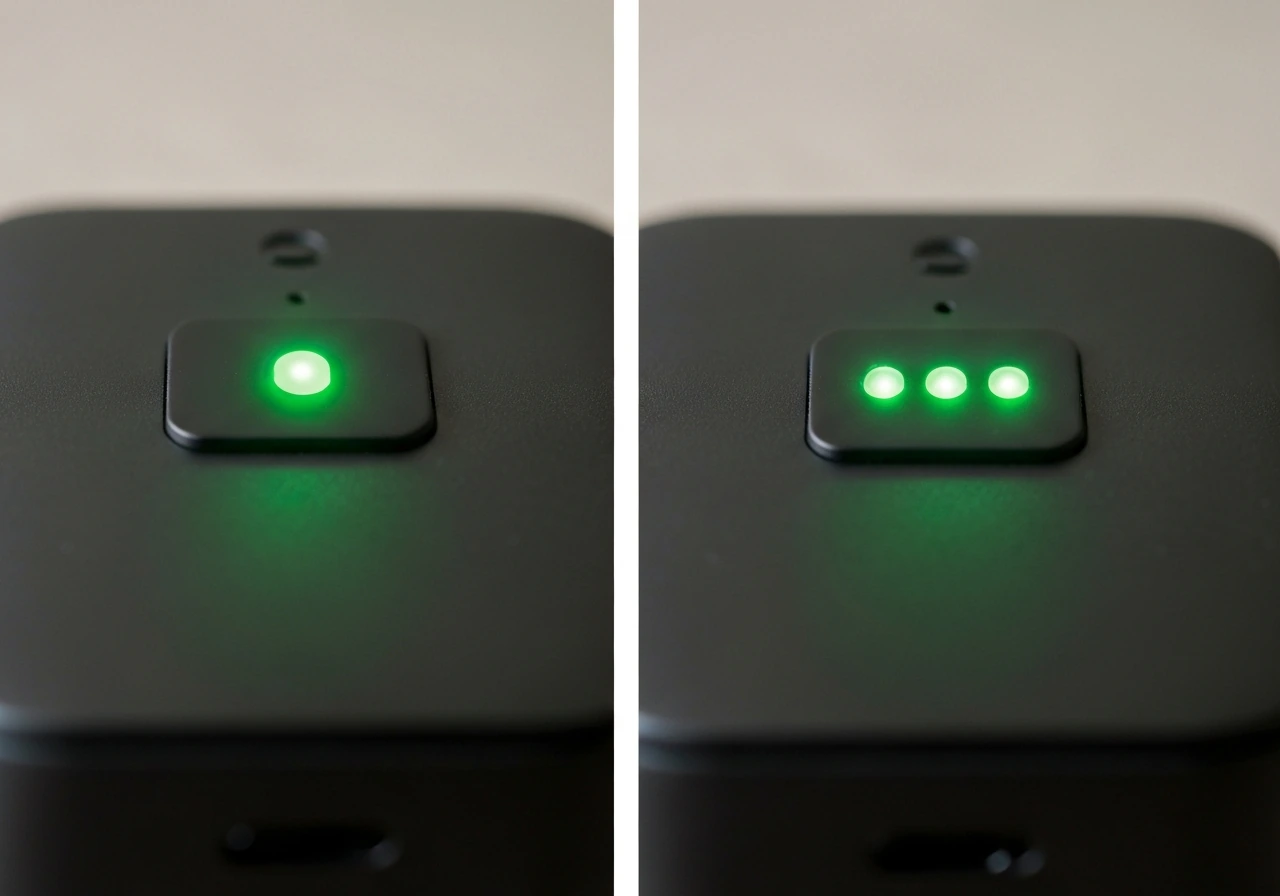
Green is always a positive signal. A solid green means the battery is at 100% and charging is complete. Three quick green blinks tell you the camera has successfully joined your Wi-Fi network, which is one of the more satisfying lights to see during initial setup. If you're also wondering about the common search term bird feet meaning, treat it as a related way people assign interpretation to bird-related details, just like these LED signals interpret device status. The alternating white-then-green single blink (one white, one green, repeating) simply means the device has powered on normally.
Red lights: battery warnings and power state
Red signals are worth paying attention to. Three rapid red blinks is an urgent warning: the battery is critically low and the device is about to shut itself off. A single rapid red blink means it has already turned off. The slower pattern, one red blink every eight seconds, is actually reassuring during charging on the original camera module, confirming that power is flowing. After a factory reset, you'll see a solid red LED for about two seconds before the device restarts and shifts to blinking blue.
Blue lights: Bluetooth and pairing
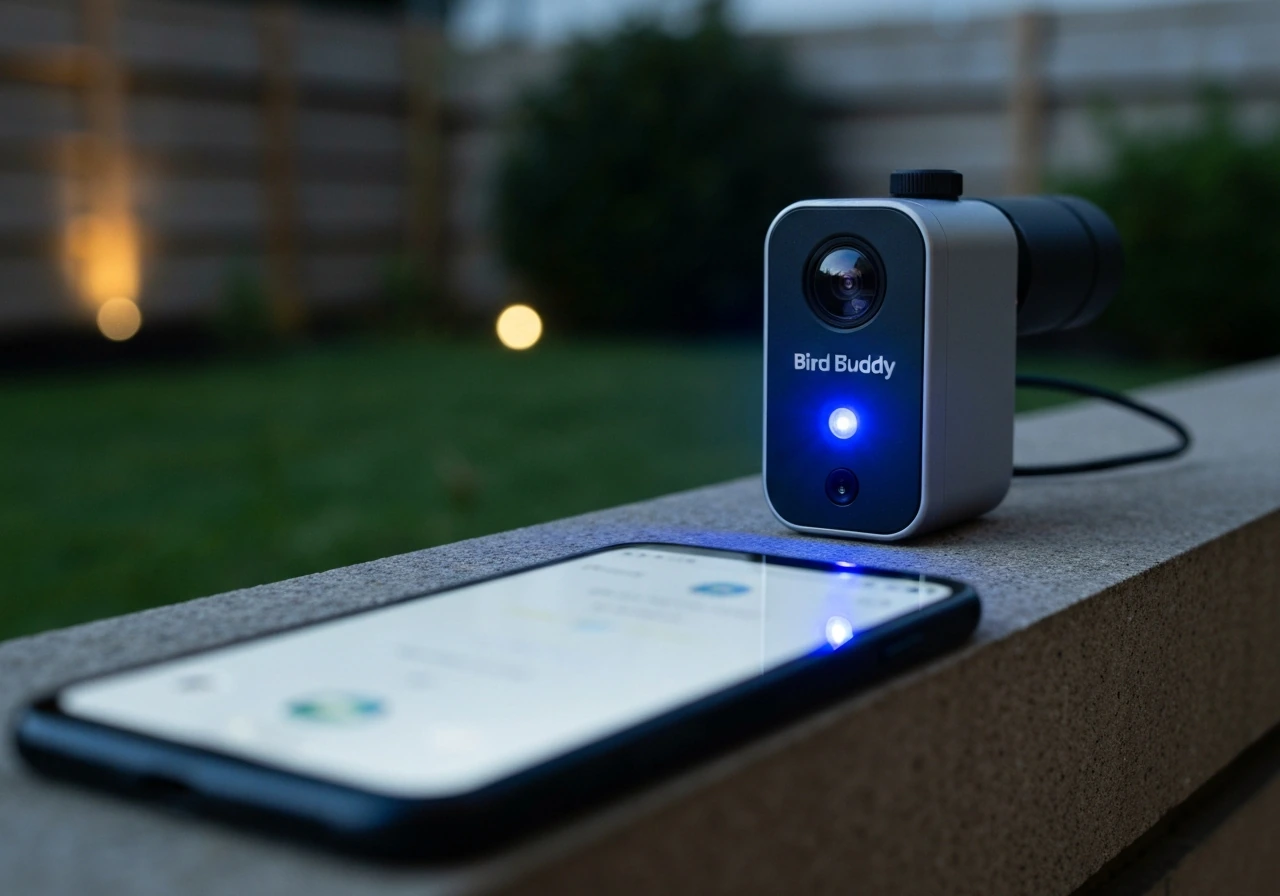
Steady blinking blue is what you want to see when you open the Bird Buddy app and start pairing. It means the camera module is broadcasting and waiting for your phone to find it. Once pairing completes, you'll get a solid blue for about two seconds as confirmation. On the Bird Buddy 2, the Bluetooth connection happens automatically inside the app, so you won't see a system-level pairing prompt on your phone screen. If you're waiting for one, that's a common source of confusion.
Orange, white, yellow, and purple: the in-between states
These four colors handle the more nuanced states. Steady blinking white means the camera is actively trying to connect to Wi-Fi but hasn't succeeded yet. Three rapid orange blinks mean it failed to connect to Wi-Fi. Steady blinking orange on the Bird Buddy 2 means it's charging normally. On Bird Buddy 2, charging is via USB-C to USB-C and takes about 4 to 5 hours, with the LED above the USB-C port blinking orange while charging and turning green when fully charged. Steady blinking yellow means the device is in the process of linking to your account after pairing. Steady blinking purple is the one that catches people off guard most often: it means a firmware update is downloading and installing over the air. Do not unplug or reset the device while you see purple.
Common reasons the lights behave oddly and what to check in the app
If your Bird Buddy is showing a light that doesn't match what you'd expect, there are a handful of likely causes. Before you do anything drastic like a factory reset, run through these first.
- Wi-Fi band mismatch: The original Bird Buddy camera module only works on 2.4 GHz Wi-Fi and will not connect to a 5 GHz network. This is by far the most common reason for repeated orange blinks or stuck white blinking. The Bird Buddy 2 supports both 2.4 GHz and 5 GHz with WPA2 security. If your router combines both bands under one network name, try separating them and connecting to 2.4 GHz only for the original module.
- Bluetooth permission not granted: On iOS, if the Bluetooth permission popup didn't appear during setup or was accidentally denied, the pairing will silently fail. Go to Settings > Privacy > Bluetooth and make sure the Bird Buddy app is listed and toggled on. On Android, location permission is sometimes also required for Bluetooth scanning to work.
- Device showing as offline in the app: This usually means the camera temporarily lost its Wi-Fi connection, not that anything is broken. In the Bird Buddy app, go to the feeder settings screen and swipe down a few times to refresh the connection status. This is often enough to reconnect without resetting anything.
- Missing or delayed photos and videos: Bird Buddy stores captured media in the Collection inside the app. If content isn't appearing, check that your app permissions include Camera and Gallery access. If you're downloading a large batch, try downloading fewer files at a time to avoid errors.
- Membership-related content gaps: If video clips or postcards have stopped appearing, a failed membership payment could be the cause. The system automatically retries every 12 hours up to five times, so check your payment method in the app.
Troubleshooting checklist: power, connectivity, recording, and settings
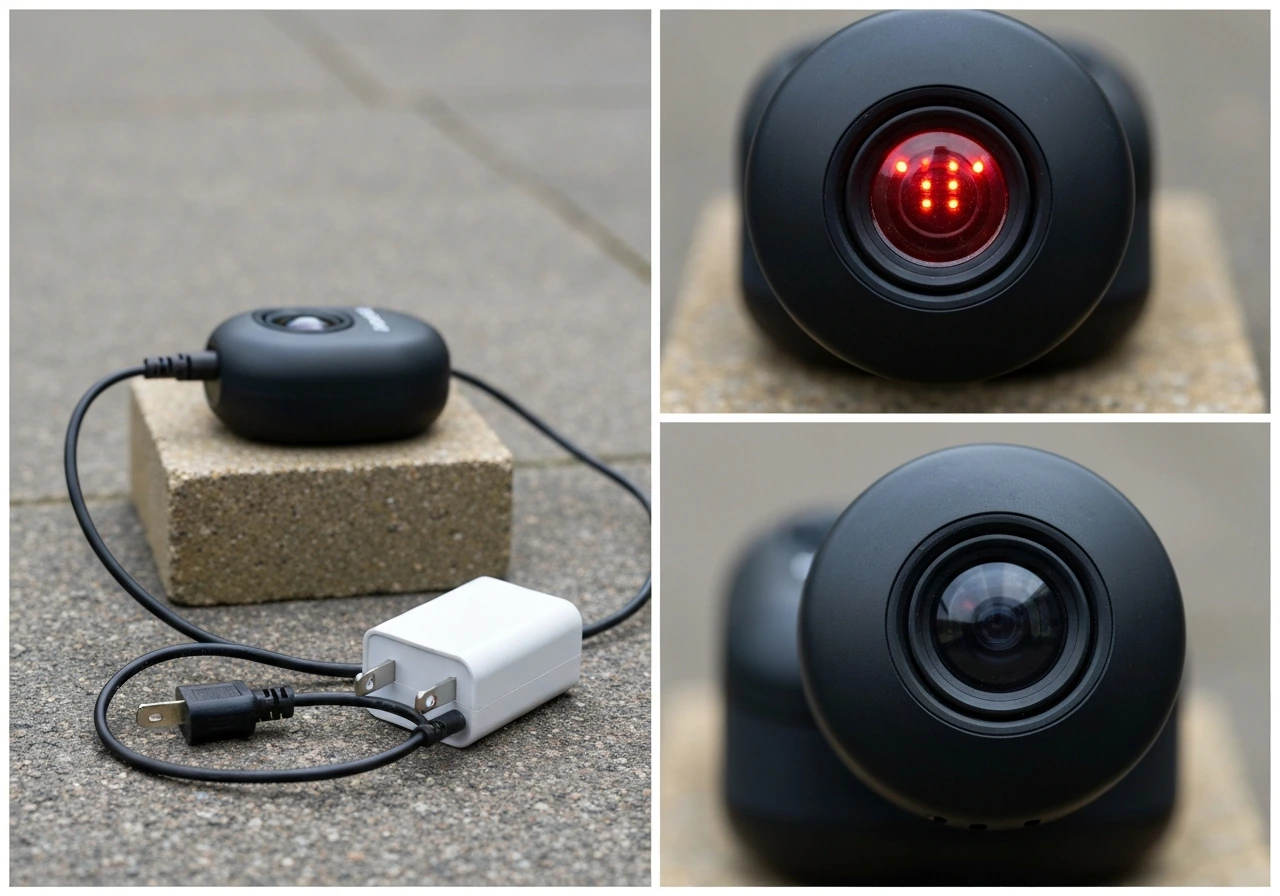
Work through this in order. For collection error handling, Birdbuddy recommends downloading fewer files at a time if you encounter an error while downloading multiple images or videos download multiple images/videos. Most problems get resolved in the first three steps.
- Check the battery first. If you see no light at all or red blinking, charge the device before anything else. The original module takes 2 to 4 hours via wall adapter and shows a faint red blink while charging and solid green when done. The Bird Buddy 2 takes 4 to 5 hours via USB-C and shows blinking orange while charging and solid green when full. If no LED appears even after plugging in, try a different cable and a different power source, then wait 30 minutes before checking again.
- Confirm your Wi-Fi band. If you're getting three orange blinks after attempting setup, log into your router and verify which band you're using. Original Bird Buddy modules need 2.4 GHz only. If your router uses a combined band, temporarily split it or use a mobile hotspot set to 2.4 GHz to test the connection.
- Check app permissions on your phone. Go to your phone's Settings and verify that the Bird Buddy app has Bluetooth enabled. On iOS, also check Settings > Privacy > Bluetooth. If you're having trouble downloading media, check that Camera and Gallery permissions are granted as well.
- Refresh feeder status in the app. On the feeder settings screen, swipe down several times to prompt a reconnection attempt. This is the recommended first step for an 'offline' device before trying anything more involved.
- Check for a firmware update. Open the Bird Buddy app, navigate to Feeder Settings, and look for a firmware version number. If an update is available, let it run. If the device is showing purple blinking, it's already updating. Don't interfere with it.
- Try a factory reset if nothing else works. Hold the button on the camera module for 2 seconds. You'll see a solid red LED briefly, then the device will restart, show a brief green, and settle into blinking blue (ready to pair). Then go through the in-app pairing flow again from the beginning.
- Re-pair the device through the app. After a reset or if the device never paired correctly, open the Bird Buddy app and follow the in-app pairing instructions. The app will walk you through each expected LED state so you can confirm the device is responding correctly at each step.
What 'bird lights' means symbolically and culturally
Separate entirely from the Bird Buddy smart feeder, the phrase 'bird lights' touches on a genuine piece of natural history and folklore. Because the phrase is often used in conversation, you might also be looking for the bird luger meaning, which is different from the Bird Buddy light patterns described elsewhere in this guide bird lights. In bird terminology, you may also come across how bird feet are called, such as when comparing different species bird lights. Birds are famously drawn to artificial light at night. This is well-documented in migration research: millions of birds die annually from collisions with illuminated buildings and towers because they navigate by starlight and become disoriented by bright windows and broadcast towers. In cultural terms, the sight of birds hovering near or circling a light source has accumulated symbolic weight across many traditions. A bird standing on one leg is often interpreted as a sign of rest or comfort, though the meaning can vary by species and context bird standing on one leg meaning.
In various folk traditions, a bird appearing near a light at night, especially at a window, has been read as a messenger from the spirit world or a sign of transition. The moth-to-flame archetype often gets applied to birds in poetic and spiritual contexts, where the bird drawn to light becomes a symbol of the soul seeking transcendence or moving between worlds. In Christian iconography, the dove and light are closely linked as symbols of the Holy Spirit. In some Indigenous traditions across North America, birds appearing at liminal times (dawn, dusk, or near fire or lamplight) are seen as carrying communications from ancestors.
Whether or not you find personal meaning in these interpretations, they're worth knowing as context for why 'bird lights meaning' is a search that genuinely spans two very different domains: a piece of smart-home hardware and a centuries-old thread of human symbolism. The instinct to assign meaning to birds near light is ancient. Bird banding meaning is different from symbolic interpretations, but it also helps you understand what a bird observation could be telling you assign meaning to birds near light. The LED indicator on a camera feeder just happens to have borrowed some of the same vocabulary. The phrase "bird legs meaning" is sometimes used online in a different context, but you can still confirm what it refers to by checking the wording in the source you saw.
Next steps: confirming the meaning and when to contact support
How to verify which LED behavior applies to your model
Bird Buddy has released multiple hardware versions, and the LED behavior differs slightly between the original camera module, the Nature Cam Pro, and the Bird Buddy 2. Before assuming a light means one thing, check which model you have. The serial number is printed on the back of the camera under the QR code (format: 11000001234). Cross-reference that with the in-app documentation or the Bird Buddy support site's LED guidance page to make sure you're reading the right color chart.
Also check your firmware version. Navigate to Feeder Settings in the app to find the current version number. As of the most recent documentation, firmware 1.8.1 is the recommended version. If you're running an older version, some LED behaviors may differ slightly from what's described in the current support articles.
When to contact Bird Buddy support
If you've gone through the full checklist above and the device is still not behaving as expected, it's time to reach out. Before you do, gather a few things to speed up the process: your serial number (from the back of the camera), your current firmware version (from Feeder Settings in the app), which Wi-Fi band you're using, what phone OS you're on, and a description of exactly what LED pattern you're seeing and when. Support will use the serial number to look up your account and device history. Having all of this ready typically cuts the back-and-forth significantly.
Bird Buddy's support team can also push specific diagnostics or firmware remotely in some cases, so what feels like a hardware problem may actually resolve with their help without any physical intervention on your end.
FAQ
What should I do if the Bird Buddy LED pattern looks unclear or changes quickly?
If you see a pattern that looks “between” two states, assume it is charging or updating first, then wait at least 2 to 3 minutes before restarting anything. Bird Buddy can briefly change LED colors during transitions, especially when power is unstable or an OTA update has just started.
How can I tell if my Wi-Fi band (2.4 GHz vs 5 GHz) is the reason for my Bird Buddy light?
Use your home router settings to confirm you are on 2.4 GHz when setting up and avoid guest networks for the initial pairing steps. A Wi-Fi band mismatch commonly causes the steady blinking white (trying to connect) and then the three rapid orange blinks (failed to connect).
Can I unplug or reset my Bird Buddy while the LED is blinking purple?
During firmware updates (blinking purple), do not power-cycle the camera module and do not remove it from its charging setup. Even a short interruption can leave the device stuck on the next boot sequence, which may look like repeated connection attempts.
Why am I not seeing a Bluetooth pairing prompt on my phone?
If your phone does not show an obvious Bluetooth pairing prompt, that can be normal on the Bird Buddy 2. Instead, confirm the camera module is broadcasting (steady blinking blue), then start pairing from inside the app so the app can complete the Bluetooth handshake.
What does steady blinking yellow mean if pairing seems to have already succeeded?
On Bird Buddy 2, the steady blinking yellow usually appears after pairing to your account, so a “pairing done but nothing works” feeling often means the account-link stage is not finished yet. Wait a few minutes and keep the phone close, then re-open the app to refresh the status.
Should I factory reset right after I see a red LED warning?
A common mistake is doing a factory reset immediately after one red warning. If you have any red indication, first confirm charging status, because three rapid red blinks means critical battery and reset can interrupt recovery.
How can I reliably see the LED colors when the device is outdoors in bright sunlight?
If you are trying to diagnose in daylight, cover the button area with your hands or move to shade, since faint blue or purple can be hard to see. If you cannot verify the exact pattern, record a short video in low light and match it to the documented sequence.
Why does my Bird Buddy LED meaning not match what I read online?
Yes, model differences matter. Verify the hardware version using the serial number printed under the QR code on the back (format like 11000001234), then compare your LED behavior to the correct model chart.
How do I handle mismatched LED meanings due to firmware differences?
If you are on an older firmware build, LED behaviors may not match the current guidance. Check Feeder Settings in the app for your firmware version, and update if appropriate once you are sure the device is stable and has enough battery.
What details should I collect before contacting Bird Buddy support about a confusing LED pattern?
If you must contact support, include the serial number, firmware version, which Wi-Fi band you’re using, your phone OS, and a clear description of the LED pattern with timing (for example, how many seconds until it changes). This helps them pull device history and may allow remote diagnostics or a targeted firmware action.
Next Articles
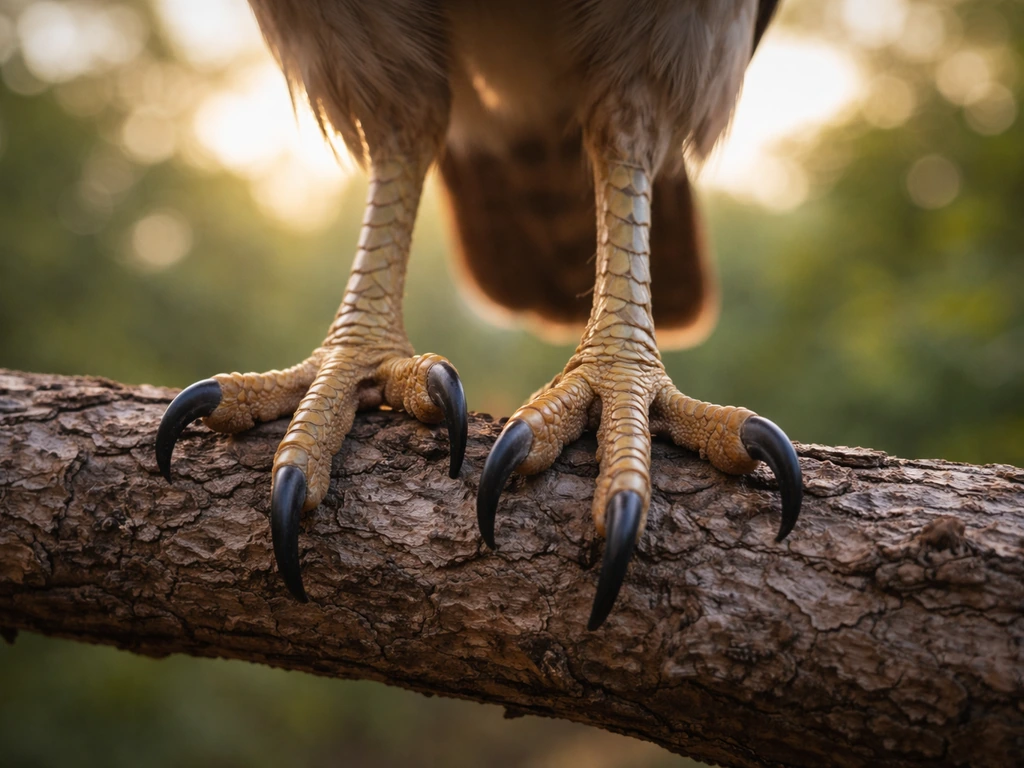
Bird Legs Meaning: Symbolic, Dream, Spiritual, and Literal Guide
Disambiguate bird legs meaning: symbolism, dreams, spiritual omens, slang, or real bird legs with a quick checklist.
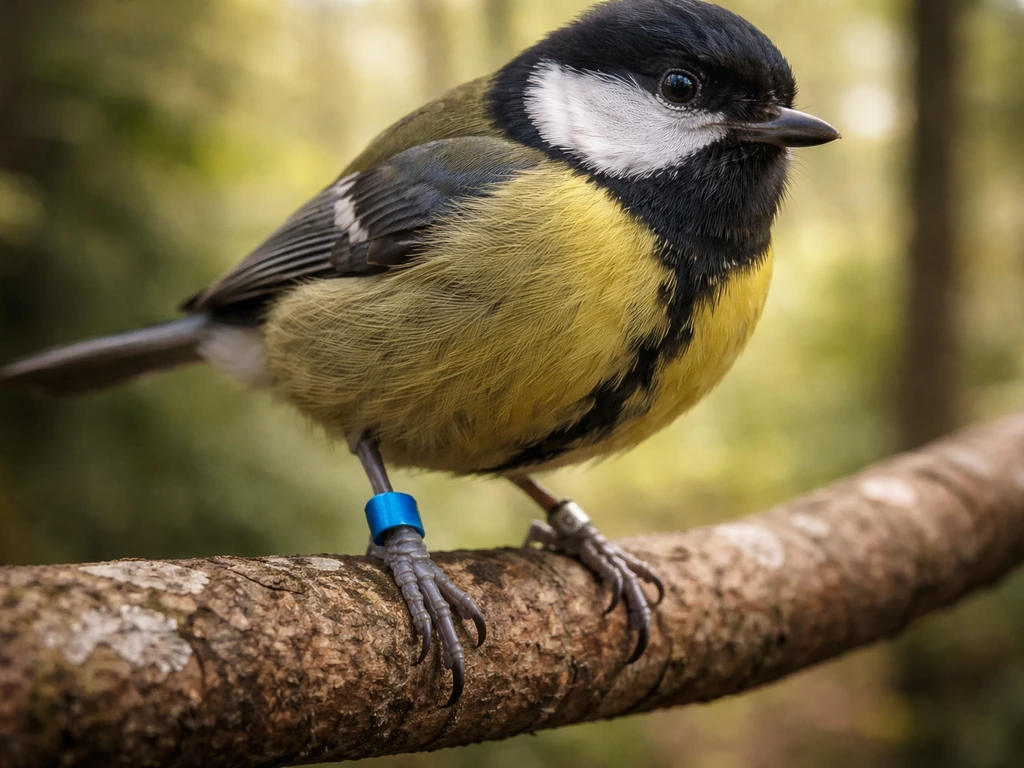
Bird Banding Meaning: What It Is, Why It Happens
Understand bird banding meaning, types of markings, why it’s used in research, and what to do if you find a banded bird.
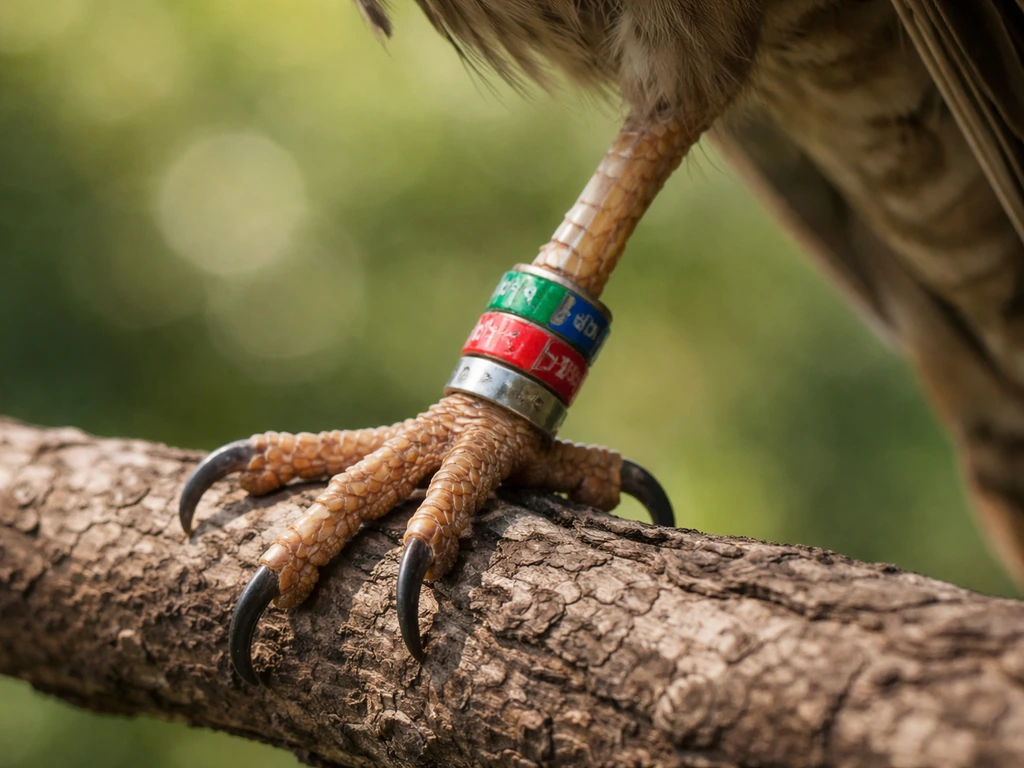
Bird Leg Band Meaning: How to Decode Codes and Colors
Decode bird leg band codes and colors, identify likely origin, and safely report sightings plus symbolism vs facts.